(925) 212-0638

Websites for Small Businesses & Individuals
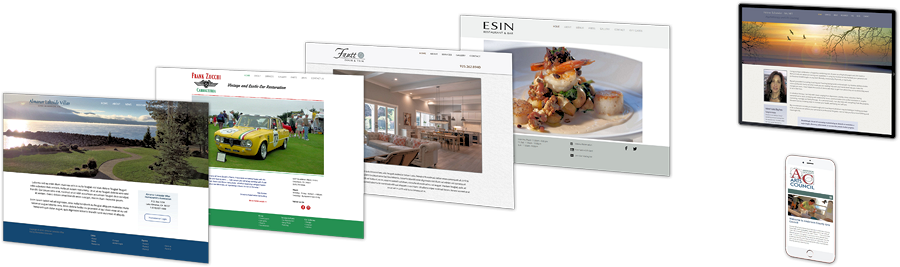
AlamoWeb Solutions is an East Bay website design company that has specialized in designing websites for small businesses and individuals for over 15 years, serving local areas including Walnut Creek, Alamo, Danville, San Ramon, Lafayette, Concord, Pleasanton, Berkeley, and Oakland. My typical customer is a new, small business owner that is looking for someone to create an attractive, effective website at an affordable cost that will help their business grow. This is what I do best! |
For over 15 years I have created high quality, custom designed websites for a full range of businesses including restaurants, lawyers, family therapists, personal care professionals, building contractors, investment managers, business consultants, writers, authors, artists, fitness gyms, professional educators, inventors, and actors. View my design portfolio to see some of my current designs. I work closely with my customers during the entire website development process to fully understand the customer's needs and requirements. My design goal is to always exceed the customer's expectations including design aesthetics, website ease of use and cost expectations. And after a website is published, I continue to provide the same level of customer support when changes or any other type of website maintenance is required. So whether you have a new business or are interested in giving your existing website a fresh look, AlamoWeb Solutions can design you a fully custom designed website at price that will be well within your budget and in less time than most other companies. So before making a decision about who will create your website, read the information on the "Design Benefits" page then call AlamoWeb Solutions. |
| |